
BY FRAMELIFTER · Updated
Airbnb Cover Photo: How to Change It & Choose the Best Shot
Set the cover, check the crop, and give guests a clear first look at your actual property. Here are the steps, plus a practical way to choose and order your opening photos.
Jump to a section
How to change your Airbnb cover photo
Use the account that manages the listing. On desktop:
- Open Listings and choose the property.
- In Listing editor, open Photo tour, then All photos.
- Select your image, choose Make cover photo, and Save.
Airbnb says the update can take up to 30 minutes. For photo order, return to All photos and drag the first five into position; ordering saves automatically.
Source checked October 2, 2026: Airbnb’s photo-tour and cover-photo instructions.
Choose a photo that works when it is small
Start with two or three candidates from the actual property. Compare them as small thumbnails before judging them full-screen. A beautiful detail shot may be hard to understand when it is only a few hundred pixels wide.
- Give the eye one place to land. A seating area, a distinctive exterior, or a real view should be easy to recognize.
- Show what the guest is renting. A neighborhood beach photo can be useful later in the gallery, but a cover made from it could imply a view or access the property does not have.
- Keep the room believable. Check furniture, rugs, window views, wall colors, and the space around the camera. An edit should still describe the same stay.
- Choose clarity over novelty. If you need a caption to explain the image, try a wider view for the cover.
A pool or cabin exterior can introduce a property with a strong outdoor feature. For an apartment, a clear view of the main living area may explain the stay more quickly. There is no universal best room.
Check the cover crop and image size
Keep important features away from the edges. Airbnb recommends horizontal photographs and notes that search and listing views can use different crops. The two views below use the same photo to show what a tighter crop can hide.
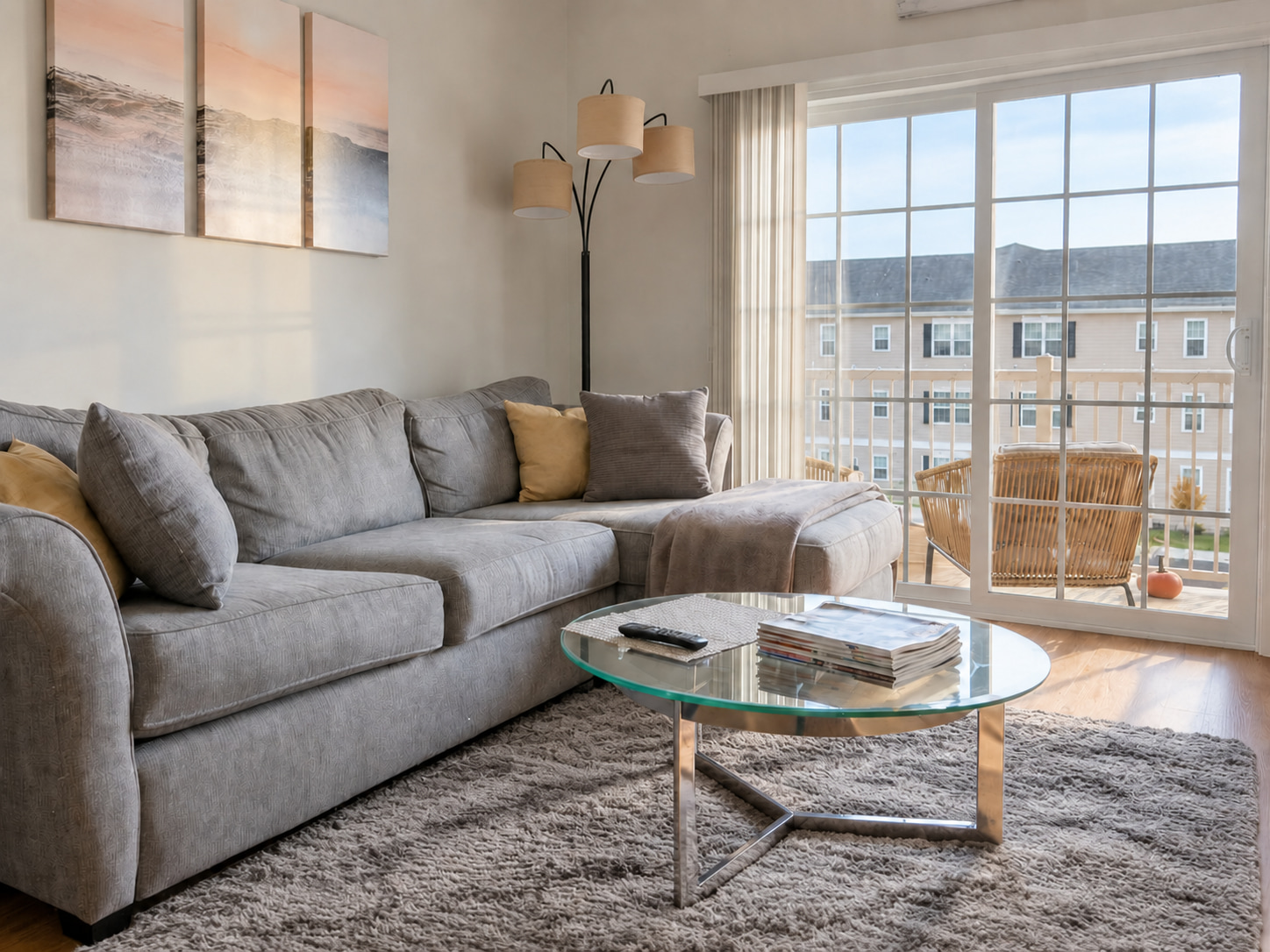
More of the room fits across the frame.
Check what disappears at the edges.
Illustrative crops. Check the actual public listing on a phone and a larger screen; layouts can change.
Airbnb lists 1024 × 683 px as the minimum in its Help Center. Its photography guide recommends 1200 × 800 px or larger. Use a sharp original; enlarging a small screenshot will not restore detail.
See the Airbnb photo size and file requirements for the full specifications, or use the free Airbnb photo resizer to preview a landscape crop and export a JPEG.
Sources: Airbnb Help Center and Airbnb’s photography guidance.
Make the first five photos answer different questions
Use the opening group to introduce the property. This is a suggested sequence for a whole-home listing; adapt it to what guests need to understand about yours.
| 1. The introduction | Your clearest view of the main selling point: the space, exterior, or a distinctive amenity. |
|---|---|
| 2. The living space | Show where people can sit, relax, or spend time together. |
| 3. The sleeping setup | Make the primary bed and its room easy to understand. |
| 4. An everyday need | A useful view of the kitchen, bathroom, or workspace. |
| 5. A reason to choose it | A real outdoor area, view, or amenity not already explained. |
Five almost identical angles make guests work harder to understand the stay. Keep extra room angles in the rest of the tour. For a private room, prioritize the space the guest is booking and make shared spaces clear.
Our guide to the photos Airbnb guests look for can help you spot missing views before the next shoot.
If your cover photo is not updating
- Check the correct property. Reopen its editor and confirm the intended image is selected.
- Use the complete gallery. Go through All photos, then select the image and look for the cover control.
- Check the public listing after the update window. Compare the editor, the live listing, and its search thumbnail. A crop can make the same image look different.
- Document a persistent mismatch. Send Airbnb support the listing link and screenshots of the selected cover and public result. If software manages your photos, check its settings too.
Do not repeatedly upload duplicates to fix a display issue. Confirm which file is selected first, and keep your original gallery organized while you investigate.
GIVE YOUR LISTING A BETTER FIRST LOOK
A clearer first look at the same room.
Have the right angle, but the room looks dim? Compare a free edit of your own photo. Check the light, colors, and property details before making it your cover.
Free watermarked preview · No account or credit card needed.
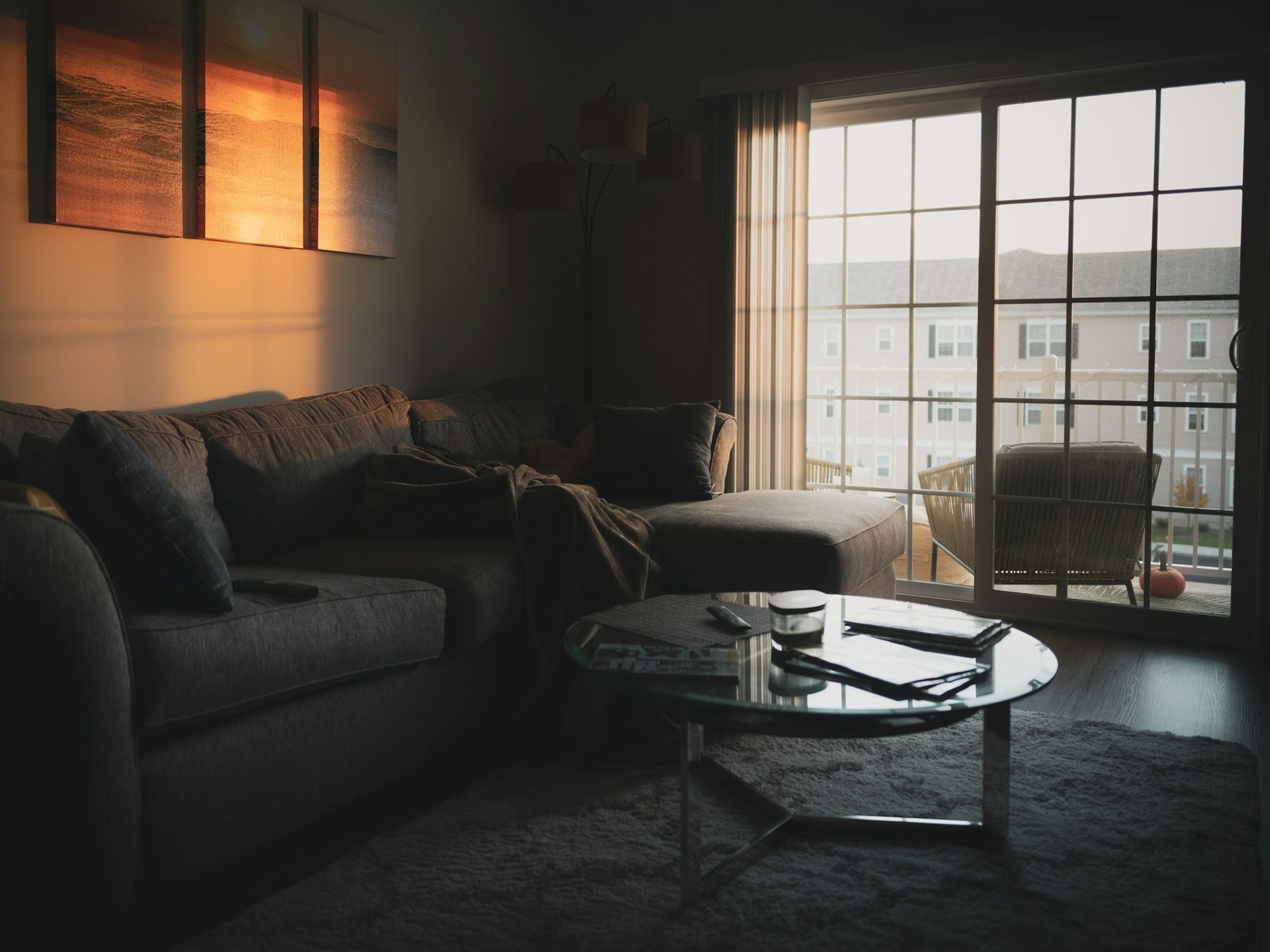
What we changed
- Brightened & balanced lighting
- Decluttered the coffee table
- Tidied pillows & throw
- Preserved the rug & window view
Drag to compare the edit. Explore more examples. Review your own edit before publishing.
Frequently asked questions
How do I change my Airbnb cover photo?
In your listing editor, open Photo tour, then All photos. Select an image, choose Make cover photo, and save. Airbnb says updates may take up to 30 minutes to appear.
What size should an Airbnb cover photo be?
Airbnb’s Help Center gives a minimum of 1024 × 683 pixels. Its photography resource recommends at least 1200 × 800 pixels. Keep a larger original and check the crop before publishing.
Should my cover photo show the exterior or a room?
Pick the image that most clearly explains what is special about this stay. A distinctive exterior or an appealing living space can work. Compare both at thumbnail size, and choose the one with the clearest subject and most accurate view of the property.
Will a new cover photo guarantee more bookings?
No. A clearer photo can help a guest evaluate your listing, but price, location, availability, reviews, and the rest of the listing also affect booking decisions. Change one thing at a time and compare results over similar periods.