
Field guide · Updated October 2, 2026
iPhone real estate photography,
room by room.
Get the light, framing and small details right before you leave the property. Build your shot checklist, then see what a careful edit can do.
Free checklist · Works with the Camera app you already have
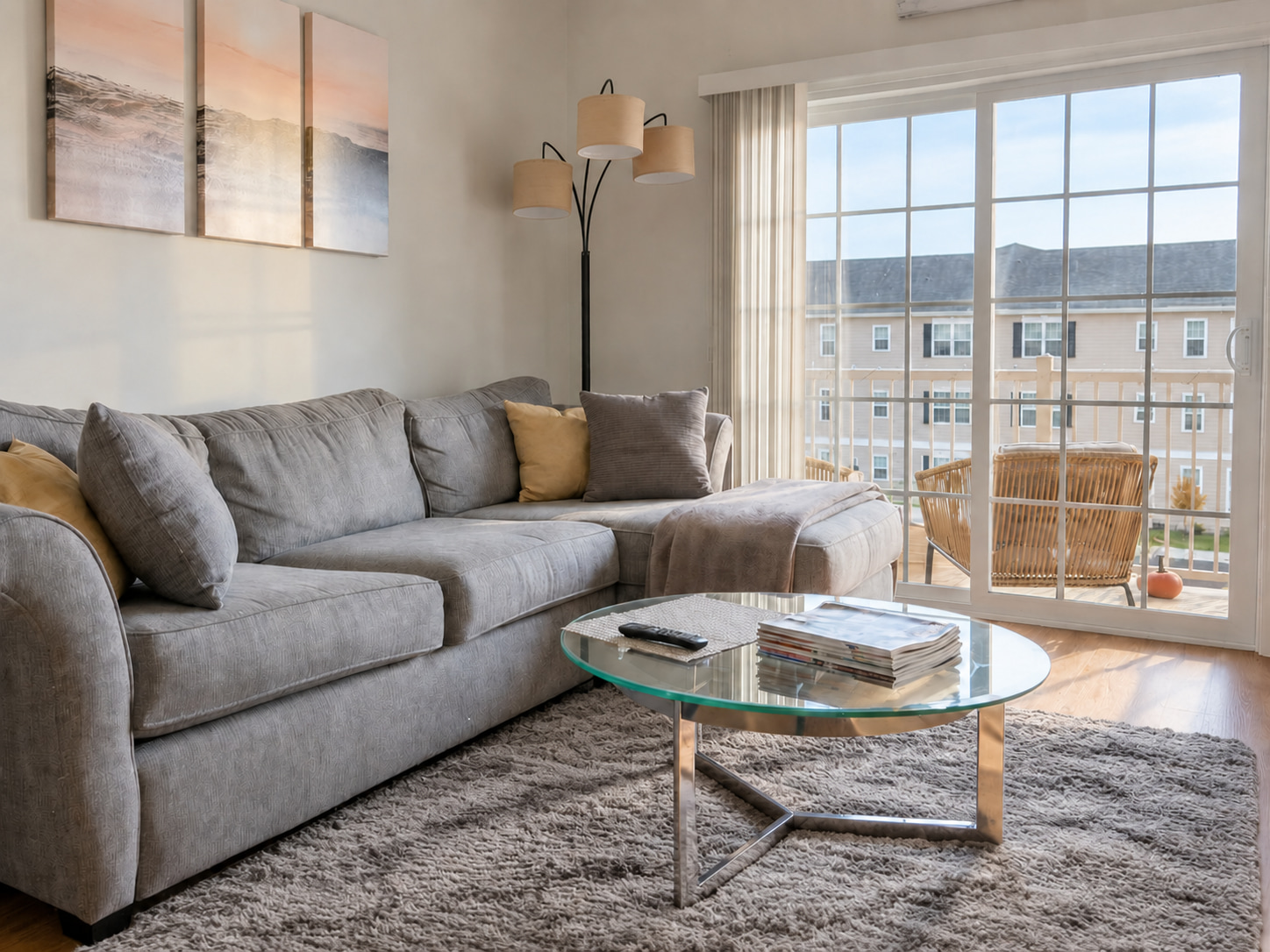 COMPOSITION REFERENCE · 4:3
01 / At the property
A plan for the room in front of you.
Choose a room and its lighting. Check off the details as you shoot, or save every room's checklist.
Living room · Your shooting plan
Show how the room connects.
Start near a doorway or corner. Include the seating area and a route into the next space. Move back before reaching for a wider lens.
Tap a mid-tone part of the room, then lower exposure a little with the sun control. Check the actual photo for the view outside. If the room gets too dark, return when the contrast is gentler; editing cannot recover detail that was never captured.
Review a full-size shot before moving on. A reshoot on site is easier than trying to rescue blur or lost detail later.
Before you leave the room
Checks stay while this page is open. Save a text copy to take with you.
02 / Set up your camera
Three controls worth knowing.
Grid and level
In Settings → Camera, enable Grid and Level. Hold the phone upright, without tipping it up or down. Check door frames and cabinet edges against the grid.
Focus and exposure lock
Touch and hold a mid-tone area until AE/AF Lock appears. Move the sun control to adjust brightness. Review a captured photo, including the window view, before repeating the setup.
A steady phone and a timer
Use a tripod or stable support in dim rooms. Choose an available timer delay, then keep the phone still. Timer options vary by iOS version.
Camera controls checked against Apple's camera guide. For model-specific HDR controls, see Apple's HDR settings.
GIVE YOUR LISTING A BETTER FIRST LOOK
You took the photo. Now give it a cleaner finish.
Try a free watermarked edit of your own photo. Compare the light, color and tidiness against the original, with the same room and its real features as your reference.
Free watermarked preview · No account or credit card needed.
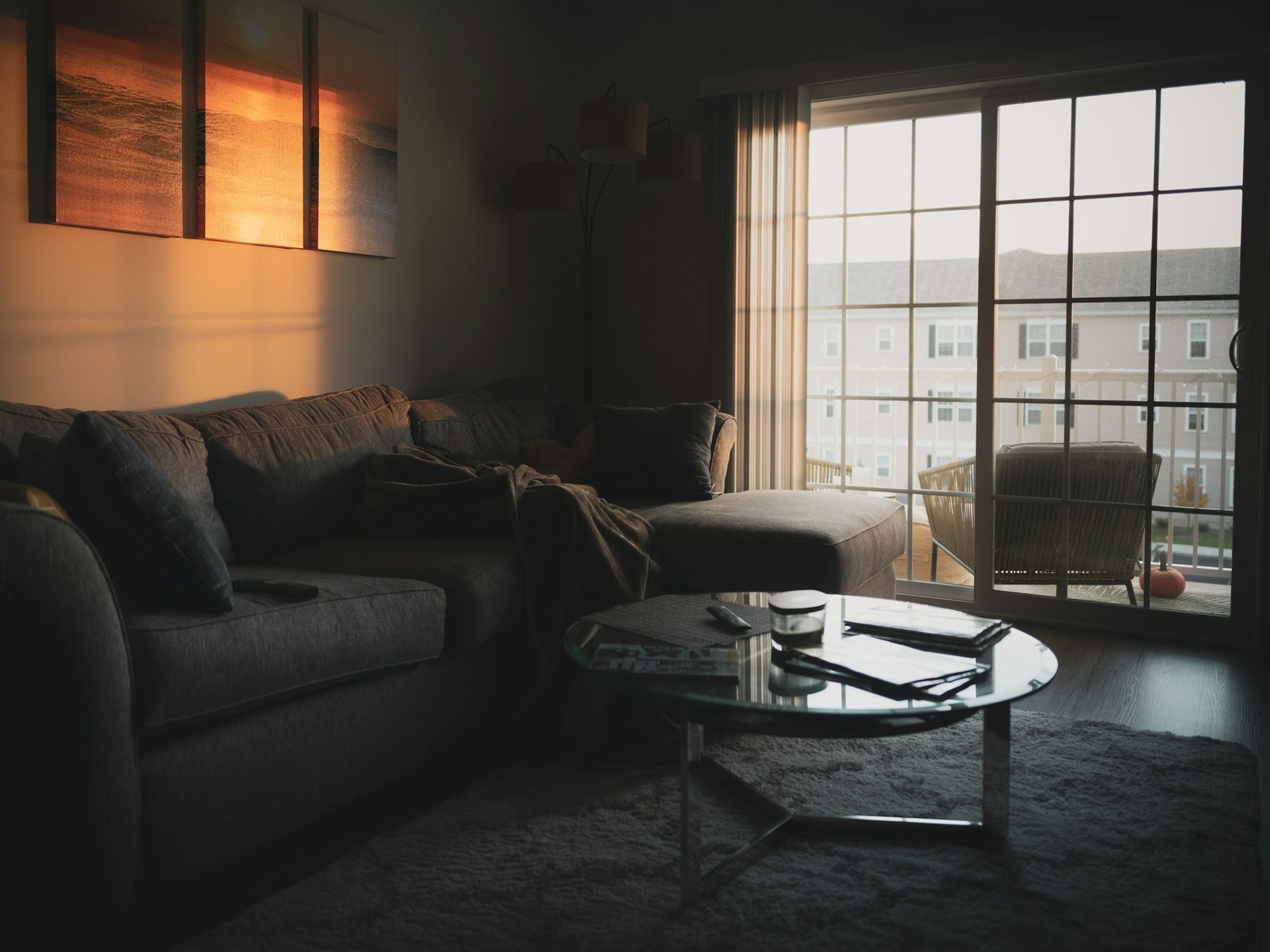
What we changed
- Brightened & balanced lighting
- Decluttered the coffee table
- Tidied pillows & throw
- Preserved the rug & window view
Drag to compare the edit. Explore more examples. Review your own edit before publishing.
03 / Ready to list
Keep the original.
Export for your MLS.
Your iPhone may save HEIC photos. Keep those originals for editing, then make a JPEG copy at your MLS's required dimensions.
Convert and resize in one step
Drop in HEIC, HEIF, JPG, PNG, WebP or another supported format. Set the size, preserve the whole frame and download JPEGs together.
Open the MLS photo resizer →Check your own MLS requirements; there is no single size for every MLS.
Questions before you shoot?
Which iPhone lens should I use for real estate photos?
Start with 1× and step back to find your composition. Use 0.5× only if your model has it and a tight room needs it. Keep the phone level and check that objects near the edges do not look stretched. Not every iPhone has an ultra-wide camera.
Should I turn HDR on?
iPhone automatically uses HDR when it is useful; manual controls depend on the model. Check your actual photo for window detail instead of relying on an HDR label. If a window is solid white, change the lighting or exposure and reshoot.
Do I need ProRAW or the highest megapixel setting?
Standard HEIC or JPEG at the camera's normal full resolution is a practical starting point. Keep the original file and resize an exported copy for your listing platform. ProRAW is optional for a deliberate RAW editing workflow on supported models; it is not required for this checklist.
Can I upload HEIC iPhone photos to an MLS?
That depends on your MLS. If it requires JPEG, the free FrameLifter MLS resizer converts HEIC and HEIF, as well as PNG, WebP and other common formats, into JPEG. Choose the dimensions and file size required by your own MLS.
Can editing fix a blurry photo or a blown-out window?
Brightness and color can be improved, but editing cannot reliably restore real detail that was never captured. Retake photos with motion blur, missed focus or completely white windows while you are still at the property.